
JavaScript Embed Script
Complete guide to embedding Docimal AI Agents in your web application with advanced customization options.
What You Can Do
Quick Start Guide
Get Your Embed Script
Go to your Docimal Dashboard, open your workspace, navigate to the Chatbot > Deploy tab. Create an API key in Step 1, then copy the script snippet from Step 2.
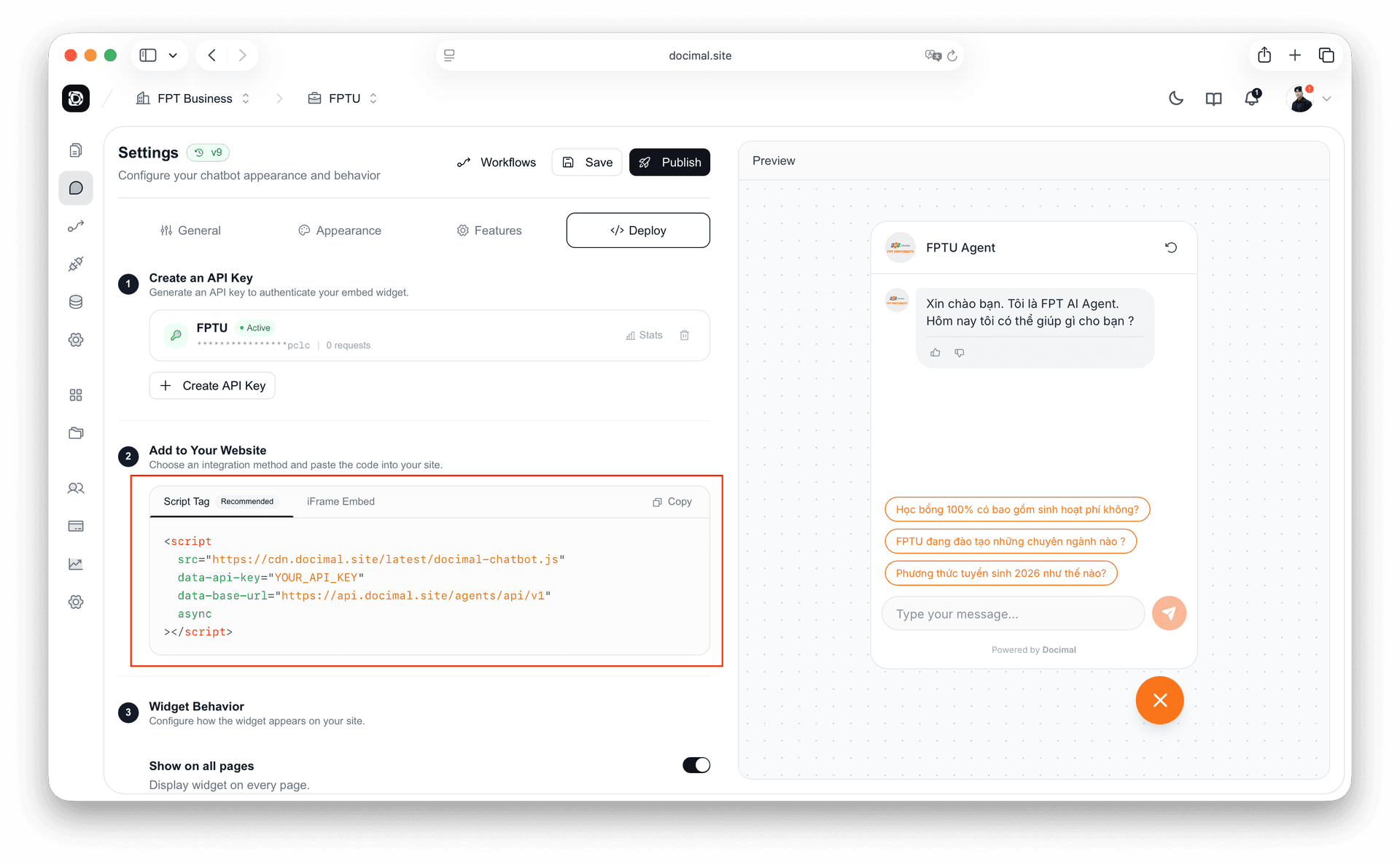
Add to Your Website
Paste the code into your website's HTML. The script loads asynchronously, so it won't block your page rendering.
</body> tag of your HTML structure to ensure it loads optimally after your page content. If you're using React/Next.js, you can add this to your layout file or use standard script components.<script
src="https://cdn.docimal.site/latest/docimal-chatbot.js"
data-api-key="dcml_pk_YOUR_API_KEY"
data-base-url="https://api.docimal.site/agents"
async
></script>With User Identity
Pass user information for session history and personalization:
<!-- With user identity (for session history & personalization) -->
<script
  src="https://cdn.docimal.site/latest/docimal-chatbot.js"
  data-api-key="dcml_pk_YOUR_API_KEY"
  data-base-url="https://api.docimal.site/agents"
  data-user-email="user@example.com"
  data-user-name="John Doe"
  data-user-id="user_123"
  async
></script>Test Integration
Refresh your website. You should see the Docimal chat bubble appear in the bottom right corner (or your customized position). Try sending a test message to verify the connection is active.
Alternative Integration Methods
Configuration Reference
Core Props
| Prop | Type | Default | Description |
|---|---|---|---|
apiKey | string | — | Required. Your public API key from the dashboard. |
apiBaseUrl | string | https://api.docimal.site/agents | API endpoint URL. Override for self-hosted or custom domains. |
chatbotId | string | — | Specify a chatbot ID if your workspace has multiple agents. |
User Identity user
Pass user information to enable personalized sessions and cross-device session history.
| Prop | Type | Description |
|---|---|---|
user.id | string | Unique user identifier from your system. |
user.email | string | User's email. Also used as visitor ID for session isolation. |
user.name | string | Display name shown in conversations. |
user.phone | string | User's phone number. |
user.customAttributes | Record<string, any> | Custom key-value pairs (e.g. plan, company, role). |
Widget Options options
| Prop | Type | Default | Description |
|---|---|---|---|
position | string | bottom-right | bottom-right, bottom-left, or inline (fills container). |
startOpen | boolean | false | Automatically open the chat widget on page load. |
persistSession | boolean | false | Keep the current session across page reloads (stored in localStorage). |
showBranding | boolean | true | Show "Powered by Docimal" branding in the widget footer. |
Theme Customization theme
| Prop | Type | Default | Description |
|---|---|---|---|
mode | string | light | light, dark, or auto (follows system preference). |
primaryColor | string | — | Brand color for buttons, links, and accents (e.g. #6366f1). |
fontFamily | string | System default | CSS font-family for the entire widget. |
borderRadius | string | 12px | Border radius for the widget container. |
headerStyle | string | light | light (white background) or colored (uses primaryColor). |
messageStyle | string | plain | plain or colored (tinted message bubbles). |
inputStyle | string | default | default, inside, rounded, inside-rounded, or minimal. |
Event Callbacks
| Callback | Signature | Description |
|---|---|---|
onReady | () => void | Fired when the widget is fully loaded and ready. |
onOpen | () => void | Fired when the chat window is opened. |
onClose | () => void | Fired when the chat window is closed. |
onMessage | (msg: ChatMessage) => void | Fired on each new message (user or assistant). |
onError | (err: Error) => void | Fired on connection or runtime errors. |
Return Value mountChatbot()
The mountChatbot() function returns an object with methods for programmatic control:
| Method | Description |
|---|---|
unmount() | Remove the widget from the DOM and clean up resources. |
updateProps(newProps) | Update widget configuration dynamically (e.g. switch theme, update user). |
Full Example
Here's a complete example using all available options:
<script src="https://cdn.docimal.site/latest/docimal-chatbot.js"></script>

<script>
  const chatbot = DocimalChatbot.mountChatbot('#chatbot-container', {
    // Required
    apiKey: 'dcml_pk_YOUR_API_KEY',

    // API endpoint
    apiBaseUrl: 'https://api.docimal.site/agents',

    // User identity (for session history & personalization)
    user: {
      id: 'user_123',
      email: 'user@example.com',
      name: 'John Doe',
      phone: '+1234567890',
      customAttributes: {
        plan: 'pro',
        company: 'Acme Inc',
      },
    },

    // Session metadata (accessible in workflows as {{user.metadata.*}})
    // Use this for Token Passthrough or passing custom context
    metadata: {
      apiToken: currentUser.internalApiToken,  // For Token Passthrough
      employeeId: currentUser.employeeId,
      department: currentUser.department,
    },

    // Widget behavior
    options: {
      position: 'bottom-right',  // 'bottom-right' | 'bottom-left' | 'inline'
      startOpen: false,           // Open widget on page load
      persistSession: true,       // Keep session across page reloads
      showBranding: true,         // Show "Powered by Docimal"
    },

    // Theme customization
    theme: {
      mode: 'light',              // 'light' | 'dark' | 'auto'
      primaryColor: '#6366f1',
      fontFamily: 'Inter, sans-serif',
      borderRadius: '12px',
      headerStyle: 'colored',     // 'light' | 'colored'
      messageStyle: 'plain',      // 'plain' | 'colored'
      inputStyle: 'default',      // 'default' | 'inside' | 'rounded'
                                  // | 'inside-rounded' | 'minimal'
    },

    // Event callbacks
    onReady: () => console.log('Chatbot ready'),
    onOpen: () => console.log('Widget opened'),
    onClose: () => console.log('Widget closed'),
    onMessage: (msg) => console.log('Message:', msg),
    onError: (err) => console.error('Error:', err),
  });

  // Programmatic control
  // chatbot.unmount();
  // chatbot.updateProps({ theme: { mode: 'dark' } });
</script>
Metadata & Token Passthrough
The metadata option lets you pass arbitrary data from your application into the chat session. This data is accessible inside workflows using the {{user.metadata.keyName}} syntax.
Common use cases:
- Token Passthrough: Pass the current user's API token so workflows can call your internal APIs on their behalf
- User context: Pass department, role, employee ID, or any business-specific data
- Session context: Pass page URL, referrer, or UI state for contextual responses
Example: Token Passthrough for Internal API
Your enterprise web app authenticates users and has their API token. Pass it to the chatbot so workflows can call your internal API as the current user:
// Your enterprise web application
const currentUser = await auth.getCurrentUser();

DocimalChatbot.mountChatbot('#chatbot', {
  apiKey: 'dcml_pk_YOUR_API_KEY',
  user: {
    id: currentUser.id,
    email: currentUser.email,
    name: currentUser.name,
  },
  metadata: {
    // These are accessible as {{user.metadata.*}} in workflows
    apiToken: currentUser.internalApiToken,
    employeeId: currentUser.employeeId,
    department: currentUser.department,
    role: currentUser.role,
  },
});
Using Metadata in HTTP Request Cards
In the workflow builder, reference metadata values using variable interpolation in headers, body, or URL:
// HTTP Request card configuration
{
  "method": "POST",
  "path": "https://erp.yourcompany.com/api/orders",
  "headers": {
    "Authorization": "Bearer {{user.metadata.apiToken}}",
    "X-Department": "{{user.metadata.department}}"
  },
  "body": {
    "employeeId": "{{user.metadata.employeeId}}",
    "items": [{ "product": "Paper A4", "quantity": 10 }]
  }
}ENCRYPTION_KEY environment variable to enable encryption.Metadata is Fully Flexible
You decide what to pass — Docimal does not enforce any schema. Different enterprises can pass different data:
// Company A — ERP integration
metadata: { erpToken: user.erpToken, warehouse: "HCM-01" }
// → {{user.metadata.erpToken}}, {{user.metadata.warehouse}}

// Company B — CRM integration
metadata: { crmApiKey: user.sfToken, region: "APAC", tier: "enterprise" }
// → {{user.metadata.crmApiKey}}, {{user.metadata.region}}

// Company C — Internal tools
metadata: { authHeader: user.bearerToken, teamId: "engineering" }
// → {{user.metadata.authHeader}}, {{user.metadata.teamId}}
Best Practices
Performance Optimization: Our embed script uses the async attribute by default. This ensures your website loads fast while downloading the widget in the background.
Security Considerations: Always configure Allowed Domains in your settings to prevent unauthorized usage of your agent on other websites. Use Identity Verification if your agent exposes private user data.
Troubleshooting: If the widget doesn't appear, check your browser console for Content Security Policy (CSP) errors. Ensure https://cdn.docimal.site and your API base URL are whitelisted in your CSP policy.
What's Next?
NPM SDK for React
Native React integration with useChatbot() hook.
Identity Verification
Secure your chatbot for authenticated users.
REST API Integration
Integrate Docimal with your existing backend.
Client-Side Custom Actions
Call local frontend actions from the AI responses.
Client-Side Custom Forms
Add interactive forms and data collection to your chat.